Share your video safely (step by step)
This short guide helps you create a Google account (only if you need one), upload a video to YouTube as Unlisted, copy the link, and paste it into the church form. Take your time—there is no rush.
What “Unlisted” means (important)
Unlisted is a privacy setting YouTube offers. It is a good balance for church submissions: your video is not shown to the public like a normal YouTube video.
- Your video does not appear on your channel page for visitors, does not show up in YouTube search, and does not appear in subscribers’ feeds the way a public video would.
- Only people who have the exact link you copy can open it. That is how our team can review your video when you submit the link on the form.
- Unlisted is not the same as Private. A *Private* video usually only works for people you invite by email inside YouTube. For our process, Unlisted + sharing the link is usually the simplest option.
Treat your unlisted link like a key: anyone who receives the link can open it and could forward it. Only send it to people you trust (for example, church staff).
Prefer to watch first?
These open on Google’s own help sites and YouTube. They are optional—you can stay on this page and follow the written steps below.
Step 1 — Do you already have a Google account?
If you already use Gmail, YouTube, or Google Photos with a working sign-in, you already have a Google account. In that case, skip ahead to Step 3.
Not sure? Open YouTube, tap or click your profile icon, and see if you can sign in. If you can sign in, you are ready to upload.
Step 2 — Create a Google account (only if you need one)
Use a phone or computer with internet. Find a quiet moment—you may need access to email or text messages for a verification code.
- Choose Create account, then For my personal use (most people pick this).
- Enter your name and basic information when asked. If you create a new Gmail address, write it down somewhere safe.
- Create a strong password you can remember (or save in your phone’s password manager).
- Complete any verification steps Google asks for (email or phone).
Step 3 — Sign in to YouTube with your Google account
- Go to youtube.com (or open the YouTube app).
- Tap or click Sign in and enter the same Google email and password you use for Gmail.
Step 4 — Upload your video and choose **Unlisted**
On a phone, look for the + (create) button. On a computer, look for Create (sometimes shown as a camera with a +).
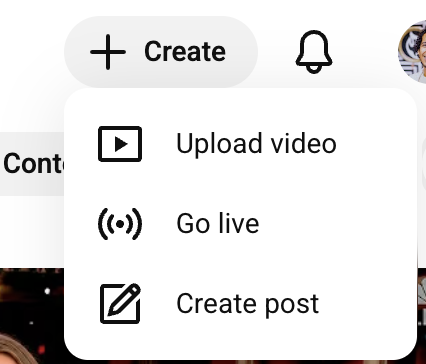
- Choose Upload a video (wording may vary slightly) and pick the video file from your device.
- Wait for the upload to finish. On the first screen you can add a simple title (for example, your name + “Audition”).
After you pick your file, YouTube may show several steps along the top (for example Details, Video elements, Checks, Visibility). For our church form you can usually skip the 2nd and 3rd steps: leave the defaults and click Next until you reach Visibility.
- On the last step, Visibility (“who can see your video”), select Unlisted—not Public, and usually not Private for this form. The description should say that anyone with the link can watch.
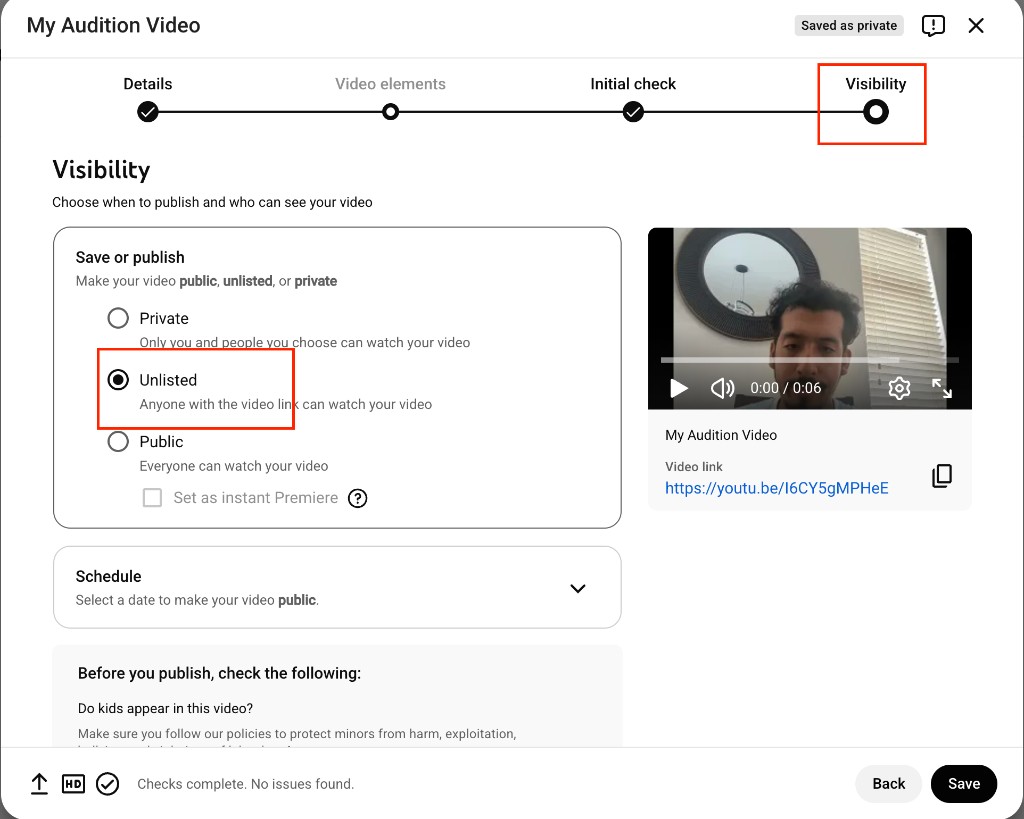
- After you click Save, your video is set to Unlisted. Keep the link you copied—you will paste it into the church form in Step 6.
Step 5 — Copy the video link
If you already copied the link on the Visibility screen, you can skip to Step 6. Otherwise, after the video is processed, open the video and use Share, or open YouTube Studio → Content and use the share link for that video.
- Tap or click Share.
- Choose Copy link. The link often starts with https://youtu.be/ or https://www.youtube.com/watch. Keep the whole link.
Step 6 — Paste the link into the church form
Open the Planning Center form below. When you see the field for your video link, tap and hold (phone) or right-click → Paste (computer) to paste what you copied.